
PRACTICAL GUIDE
Marigold Bridge AI Tutorial: From Photo to a Complete MP4
This Marigold Bridge AI Tutorial explains how to choose a scene, prepare a permitted photograph, create once and inspect the complete result. It also describes a manual photo-editing route when keeping the original image unchanged matters more than generating motion.
By Mingzhu Wang · Updated
1. Choose the result before the tool
Begin this Marigold Bridge AI Tutorial by watching a complete example, including its last second. The main scene imagines one adult on a glowing orange flower bridge. The public example uses a fictional subject. Do not judge it from the opening frame alone or assume another photograph will preserve every fine detail.
The main adult scene gathers petals and ends on the original portrait in a golden frame. The decorative makeup scene has a different look, while Heaven Hug uses two separate adult portraits rather than one.
2. Prepare one clear subject per image
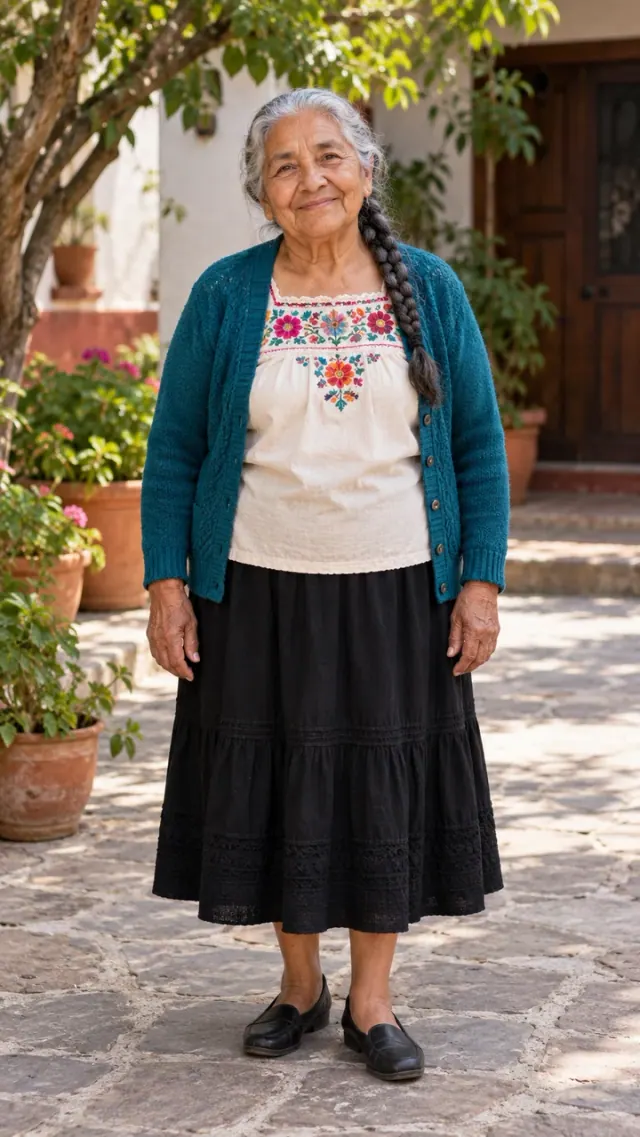
The Marigold Bridge AI Tutorial starts with a adult portrait you have permission to use. Keep eyes and distinguishing details clear. Avoid glare, strong filters, motion blur and overlapping subjects. Our accepted formats are JPG, PNG and WebP, up to 5 MB for each photo.
Use the Marigold Bridge AI Tutorial photo checklist before uploading: show the adult’s face, hair, clothing and useful body details. A clean scan of an older print can work. For the hug, prepare one adult in each of two separate images; keep both identities readable.
3. Compare three practical routes
You can choose between a scene-based generator, manual editing and a DIY model workflow. A configured tool reduces prompt-writing work. A manual editor can preserve the original photograph. A DIY workflow gives you control over references and requests but leaves tracking, storage, billing and review to you.
In the manual route from this Marigold Bridge AI Tutorial, keep the original image in a frame, choose permitted flowers or a background, add a gentle pan or fade, and export the whole sequence. Check that editor’s current export conditions and music license. We have not verified every template or promised a free matching video.
4. Create once and preserve the task
For the hosted route, choose the scene, add the required photograph, sign in with Google or an email code, check the displayed credit cost and submit once. The account keeps the task and progress so you can reopen it. A slow response is not a reason to start another potentially billable render.
The current Marigold Bridge AI Tutorial product uses Seedance 2.0 Mini through EvoLink. Requests are vertical 9:16 at native 720p. The main scene requests twelve seconds; the other adult scenes request ten. Actual container durations can be slightly longer. Original generated ambience is optional. The viral post’s recorded song is not included.
5. Understand the paid boundary
The Marigold Bridge AI Tutorial and public examples are free to read. Personalized generation on this site is paid: one credit per native-720p clip. Current one-time packs are US$9.99 for 1 credit, US$19.99 for 3 and US$29.99 for 5. There is no subscription and credits do not expire.
The Marigold Bridge AI Tutorial does not promise that another provider or template app has the same price. Check the current checkout amount and conditions before purchasing. Accounts and credits belong to this site; the related pet-remembrance project has its own balance.
6. Inspect the whole file
Review the complete output from the first frame through the ending:
A Marigold Bridge AI Tutorial quality check is different from a successful task status. Also inspect measured duration, dimensions, sound and the final second. A metadata helper can inspect a local permitted file, but cannot certify identity, anatomy, music rights or the emotional suitability of an imagined scene.
- Identity: compare the adult face, age, hair and clothing with the input.
- Movement: inspect shoes, knees, hands and their contact with the petals.
- Ending: keep the original portrait frame fully visible; for a hug, inspect both faces and overlapping arms.
- Delivery: play the final second, check sound and download the complete file.
7. Download a personal copy
The Marigold Bridge AI Tutorial workflow ends on the private result page. Open the complete MP4, use the original download and save your own copy. Reopen the result from the account rather than treating a temporary provider address as the permanent delivery link. Anonymous and unrelated accounts must not gain access.
Remember the Marigold Bridge AI Tutorial retention boundary: inputs have a seven-day window with unresolved-task exceptions; completed results have a thirty-day window. The site is not a permanent family archive. Do not post private account links or customer media in public issue reports.
8. Handle failures and sharing accurately
The support process separates confirmed technical failure from visual dissatisfaction. Confirmed technical failures restore charged credits once. Submit a severe visual defect within seven days for review under the refund policy; it is not an unconditional refund promise for every creative preference.
When sharing a Marigold Bridge AI Tutorial result, identify it as AI imagery. It is an imagined tribute, not a real reunion or evidence of an afterlife. Families remember loved ones in different ways. Avoid movie characters, borrowed footage and songs without the appropriate rights.
YouTube's disclosure guidance covers AI-generated or altered content
. It distinguishes realistic scenes from non-realistic animation. When sharing a Marigold Bridge AI Tutorial result, label AI imagery clearly and check the current upload requirements. YouTube: disclosing GenAI content.
Questions before you begin
Can I follow the Marigold Bridge AI Tutorial for free?
Yes. The Marigold Bridge AI Tutorial and manual-editing instructions are public. Personalized AI generation on the website requires paid credits.
How many photos does the Marigold Bridge AI Tutorial require?
The main Marigold Bridge AI Tutorial scene uses one adult portrait. Heaven Hug needs two separate adult portraits.
Does the Marigold Bridge AI Tutorial guarantee an exact likeness?
No. The Marigold Bridge AI Tutorial asks you to inspect the full result because the model may change fine details or motion.
Where can I find the Marigold Bridge AI Tutorial prompt?
The linked prompt guide complements this Marigold Bridge AI Tutorial with copyable teaching recipes and model-specific limits. The hosted site uses configured scenes, not an arbitrary free-form prompt box.
Create with a configured scene · Current credit prices · Failures and refunds · Back to all guides